👋 Introduction
Anything Search is a lightning-fast file search utility for Windows that helps you find any file on your computer instantly. Unlike Windows built-in search, Anything Search creates a complete index of all your files and delivers results in milliseconds as you type.
- Search results appear instantly as you type
- Index over 1 million files in under 2 minutes
- Modern Windows 11 interface
- 100% offline - no data collection
How It Works
Anything Search works by creating an index of all files and folders on your computer. This index is stored in a local SQLite database, enabling instant search queries without scanning your drives each time.
📥 Installation
From Microsoft Store (Recommended)
The easiest way to install Anything Search is from the Microsoft Store:
-
Open Microsoft Store
Press Win + S and search for "Microsoft Store"
-
Search for "Anything Search"
Use the search bar in Microsoft Store to find the app
-
Click "Get" or "Install"
The app will download and install automatically
-
Launch the App
Find "Anything Search" in your Start menu or click "Open" in the Store
- Automatic updates
- Verified and secure
- Easy uninstallation
- Syncs across devices (with same Microsoft account)
💻 System Requirements
| Component | Minimum | Recommended |
|---|---|---|
| Operating System | Windows 10 (version 1809) | Windows 11 |
| Architecture | x64 or ARM64 | |
| RAM | 4 GB | 8 GB or more |
| Storage | 100 MB + index space | SSD recommended |
| .NET Runtime | .NET 8.0 (included) | |
The search index typically uses ~200MB for 1 million files. Ensure you have adequate free space on your system drive.
🚀 Quick Start Guide
Get up and running with Anything Search in under 5 minutes:
First Launch
When you first open Anything Search, it will automatically begin indexing your files. This typically takes 1-2 minutes.
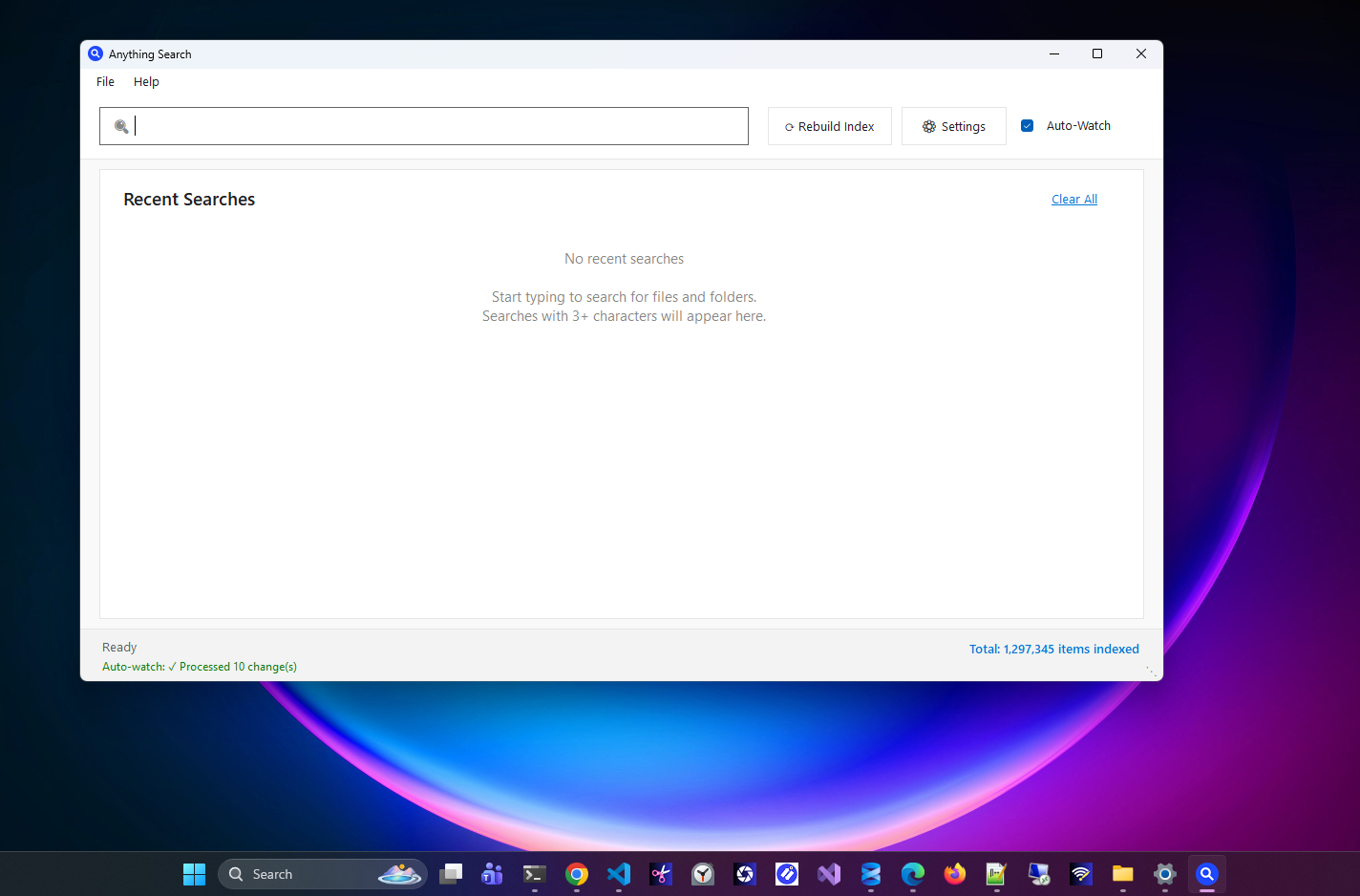
Wait for Indexing
The search box will show "Building search index..." while indexing is in progress. You can monitor progress in the status bar.
📂 125,000 folders • 📄 850,000 files • ⚡ 15,000/sec
Start Searching
Once indexing is complete, simply start typing in the search box. Results will appear instantly as you type.
🔍 report.docx
Open or Manage Files
Double-click any result to open it. Right-click for more options like "Open File Location" or "Copy Path".
🔍 Searching Files
Anything Search provides instant, real-time search results as you type.
Basic Search
Simply type any part of a filename to find matching files:
Search Tips
- Partial matches: Type any part of the filename - beginning, middle, or end
- Case insensitive: "Report" and "report" return the same results
- File extensions: Search by extension like ".pdf" or ".docx"
- Minimum length: Enter at least 1 character to search
Search Results
Results display the following information:
| Column | Description |
|---|---|
| Icon | File type icon from Windows |
| Name | File or folder name |
| Location | Full path to the file |
| Size | File size (folders show empty) |
| Date Modified | Last modification date |
⌨️ Search Syntax
Use these search patterns to find files more precisely:
By File Name
reportFinds all files containing "report" in the name
By Extension
.pdfFinds all PDF files
Combined
invoice .xlsxFinds Excel files with "invoice" in the name
Multiple Terms
project finalFinds files containing both "project" and "final"
The search is optimized for speed. For best results, type specific terms rather than very short or common words.
📊 Indexing
Indexing is the process of scanning your drives and building a searchable database of all files.
Automatic Indexing
Anything Search automatically indexes your files in these situations:
- First launch: Complete system scan on initial startup
- Auto-watch: Real-time updates when files change (if enabled)
Manual Rebuild
To manually rebuild the index:
- Click the "⟳ Rebuild Index" button in the toolbar
- Confirm the rebuild in the dialog
- Wait for indexing to complete (1-2 minutes typical)
Rebuild the index if you notice missing files, after connecting new drives, or if search results seem incomplete.
Indexing Performance
| Files Count | SSD Time | HDD Time | Database Size |
|---|---|---|---|
| 100,000 | ~15 seconds | ~30 seconds | ~20 MB |
| 500,000 | ~45 seconds | ~90 seconds | ~100 MB |
| 1,000,000 | ~90 seconds | ~3 minutes | ~200 MB |
| 2,000,000 | ~3 minutes | ~6 minutes | ~400 MB |
👁️ Auto-Watch
Auto-Watch monitors your file system for changes and automatically updates the index.
Enable/Disable Auto-Watch
Toggle the "Auto-Watch" checkbox in the toolbar to enable or disable this feature.
When Enabled
- New files are automatically added to the index
- Deleted files are removed from results
- Renamed files are updated
- Status shows "Auto-watch: ✓ Monitoring file changes"
When Disabled
- Index remains static until manual rebuild
- Lower resource usage
- New/changed files won't appear in results
Keep Auto-Watch enabled for the best experience. It uses minimal resources and ensures your search results are always up-to-date.
🕐 Recent Searches
The Recent Searches panel shows your search history for quick access to previous queries.
Features
- Quick access: Click any recent search to repeat it
- Result count: See how many results each search returned
- Timestamp: See when you performed the search
- Remove: Click the ✕ to remove individual searches
- Clear all: Use "Clear All" to remove all history
Display Conditions
- Searches with 3+ characters are saved
- Up to 10 recent searches are displayed
- Panel shows when search box is empty
- History is stored locally on your device
📥 System Tray
Anything Search can run in the system tray for quick access without cluttering your taskbar.
System Tray Features
- Minimize to tray: Click the close button or press Ctrl+M
- Double-click tray icon: Open the main window
- Right-click menu: Quick access to common actions
Tray Context Menu
⚙️ Settings
Access settings via the "⚙ Settings" button or Ctrl+S.
Available Settings
Excluded Folders
ListFolders to exclude from indexing (e.g., system folders, temp files)
Auto-Watch
BooleanEnable real-time file system monitoring
Start with Windows
BooleanLaunch Anything Search automatically on startup
Minimize to Tray
BooleanMinimize to system tray instead of closing
🚫 Excluded Folders
By default, Anything Search excludes certain system folders to improve performance and relevance.
Default Exclusions
C:\Windows
C:\$Recycle.Bin
C:\Program Files\WindowsApps
C:\ProgramData\Microsoft
C:\Users\[Username]\AppData\Local\Temp
node_modules
.git
.vs
Adding Custom Exclusions
- Open Settings
- Navigate to Excluded Folders
- Click Add Folder
- Browse and select the folder to exclude
- Click Save
- Rebuild the index for changes to take effect
⌨️ Keyboard Shortcuts
Master these shortcuts to navigate Anything Search like a pro:
General
Search Results
⚡ Performance Tips
Optimize Anything Search for the best performance:
Use an SSD
Installing on an SSD significantly improves indexing speed and search responsiveness.
Exclude Large Folders
Exclude folders with many small files (like node_modules, .git) to reduce index size.
Keep Auto-Watch Enabled
Auto-Watch uses minimal resources and keeps your index current without full rebuilds.
Use Specific Search Terms
More specific search terms return fewer, more relevant results faster.
💾 Database Management
Anything Search stores its index in a local SQLite database.
Database Location
%LOCALAPPDATA%\AnythingSearch\filesearch.dbDatabase Operations
| Operation | How To |
|---|---|
| Backup | Copy the filesearch.db file to a safe location |
| Restore | Replace the database file and restart the app |
| Reset | Delete the database file and rebuild the index |
🔧 Troubleshooting
Search results are missing files
- Rebuild the index using ⟳ Rebuild Index
- Check if the file's folder is in the excluded list
- Ensure Auto-Watch is enabled for real-time updates
- Verify the file exists and is accessible
Indexing is slow
- Close other disk-intensive applications
- Exclude folders with many small files
- Consider upgrading to an SSD
- Check for disk errors using Windows tools
App won't start
- Restart your computer
- Check if .NET 8.0 Runtime is installed
- Try running as Administrator
- Reinstall from Microsoft Store
High memory usage
- This is normal during indexing - usage decreases after
- Reduce the number of indexed files by excluding folders
- Restart the application to clear memory
❓ Frequently Asked Questions
Yes! Anything Search is completely free with no ads, no premium tiers, and no hidden costs.
No. Anything Search is 100% offline. All indexing happens locally on your device. No data is ever uploaded to external servers.
Currently, Anything Search indexes local drives only. Network drive support is planned for a future update.
Right-click the app in the Start menu and select "Uninstall", or go to Settings → Apps → Anything Search → Uninstall.
Anything Search indexes file and folder names only, not file contents. This allows for much faster indexing and search speeds.
📧 Contact Support
Need help? We're here for you!
📝 Changelog
🎉 Initial Release
- Lightning-fast file search across all drives
- Real-time search results as you type
- Background indexing with parallel processing
- Modern Windows 11-style interface
- System tray integration
- Recent searches history
- Auto-watch for file system changes
- Context menu with file actions
- Customizable excluded folders